To make your first AI video, upload a photo or write a short prompt, pick a model, set the length and resolution, and press Generate. On Higgsfield, you do all of this in Video → Create Video, and the example below walks through one real 10-second clip from source image to download. Many weak outputs trace back to a decision made before hitting generate: a vague prompt, a blurry source image, the wrong model for the job, or generating at full resolution before confirming the prompt works. The model works with what you give it.
Which AI Video Tool Should You Start With?
Pick the model that fits the shot you need. The table below covers common beginner goals, the model to try first, and the Higgsfield plan where it’s available.
Your goal | Start here | Why | Higgsfield plan |
|---|---|---|---|
Realistic output with audio in one pass | Veo 3.1 | Generates video and sound together; clips up to 8 seconds | Plus and Ultra |
Multi-shot scenes from one reference image | Seedance 2.5 | Builds a clip from your reference image in References mode; clips up to 30 seconds | Plus and Ultra |
Realistic people and talking characters | Kling 3.0 | Handles faces and body movement well; sound can be generated with the video; clips up to 15 seconds | All paid plans (720p only on Starter) |
Longer shots and multiple references | Kling 4.0 | Clips up to 30 seconds and up to 1080p; up to 10 reference images; credits only, not part of Unlimited | Paid plans |
Control over how the clip starts and ends | Wan 2.7 | First-and-last-frame control and instruction-based editing | Paid plans; first-and-last-frame control from Plus |
Natural motion and physics | Minimax Hailuo 2.3 | Realistic movement of objects, liquids, and fabric | All paid plans |
Model availability checked on October 29, 2026. Plans and model access may change.
What Is AI Video Generation and How Does It Work?
AI video generation takes a text prompt, an image, or both, and produces a short video clip. You describe what you want, the subject, action, setting, lighting, and camera angle, and the model generates it frame by frame.
There are two workflows. Text-to-video means you write a prompt and get a video. Image-to-video means you upload a photo and the model animates it. Many beginners start with image-to-video because the output is often more predictable: the model starts from a real picture instead of interpreting everything from text alone.
The model generates the whole clip in one pass, so a single clip usually holds together better than two separate clips. Still, faces, hands, and objects can drift or change mid-clip. The bigger challenge starts when you need a second clip. Each new generation starts from scratch. Most beginners run into this after their first few clips.
What Do You Need to Get Started?
You need three things: a clear idea of the shot you want, a prompt that describes it, and a source image if you are doing image-to-video. What goes into the prompt depends on the mode.
Text-to-video: describe the scene and the motion. The model has nothing to look at, so the prompt has to cover everything:
- Subject: who or what is in the frame
- Action: what they are doing
- Setting: where it is happening
- Camera: how the shot is framed and how it moves
Weak: “A woman walking.” Stronger: “A woman in a red coat walks through a rainy Tokyo street at night, close-up, slow motion, neon reflections on wet pavement.” The more specific you are, the less the model guesses.
Image-to-video: describe the motion first. The image already sets the subject, setting, and look, so the prompt mostly needs to say what moves, how it moves, and what the camera does. Repeating what’s already visible in the image adds little.
A good source image for image-to-video:
- Sharp focus and clear lighting
- The subject that matters is clearly visible; if it’s a person, the face isn’t hidden
- No heavy clutter obscuring what matters
- Resolution at least as high as the video you plan to make; check the model’s upload limits
Side angles, dark lighting, and busy backgrounds often make results less predictable. You can still use them, but simpler shots are easier to start with. Don’t have a photo that fits? You can generate a source image instead, for example in Soul Cinema on Higgsfield.
How to Generate Your First AI Video: Step by Step
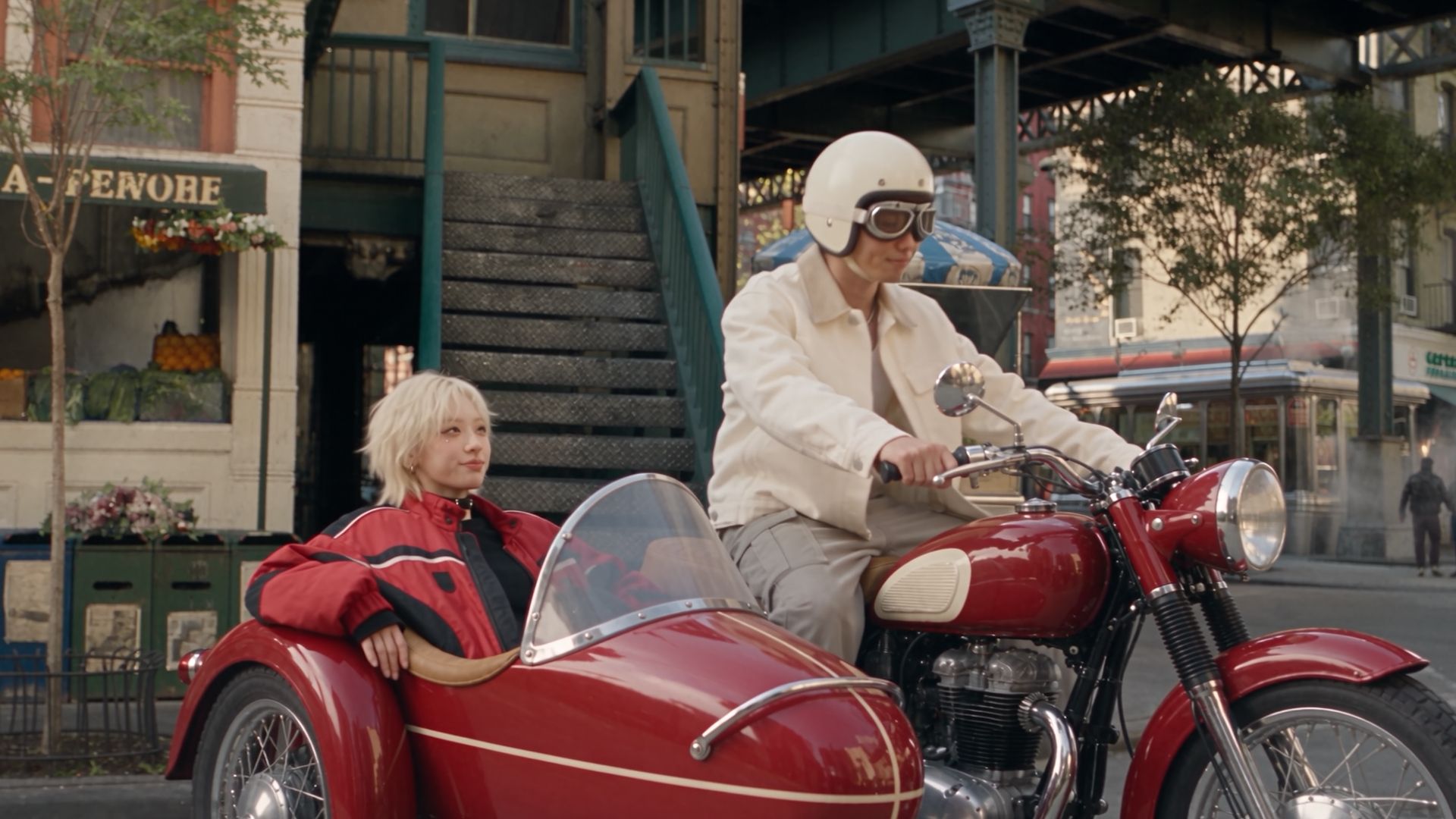
Below are the six steps, with one real example made on Higgsfield: a still frame created in Soul Cinema turned into a 10-second, three-shot clip with Seedance 2.5.
Step 1. Pick the right workflow. Image-to-video for realistic people, product demos, or any shot where you want a specific face or object. Text-to-video for abstract scenes, landscapes, motion experiments, or anything where you do not have a reference image. Open Video → Create Video and upload the image.
In our example: the reference image is a still frame we generated in Soul Cinema: a rider and a passenger on a red motorcycle with a sidecar under an elevated train line.